Gamble With Your Friends Controls & Sensitivity
Remap inputs, fix slow camera turns, tune mouse or controller sensitivity, and escape the cardboard box with E.
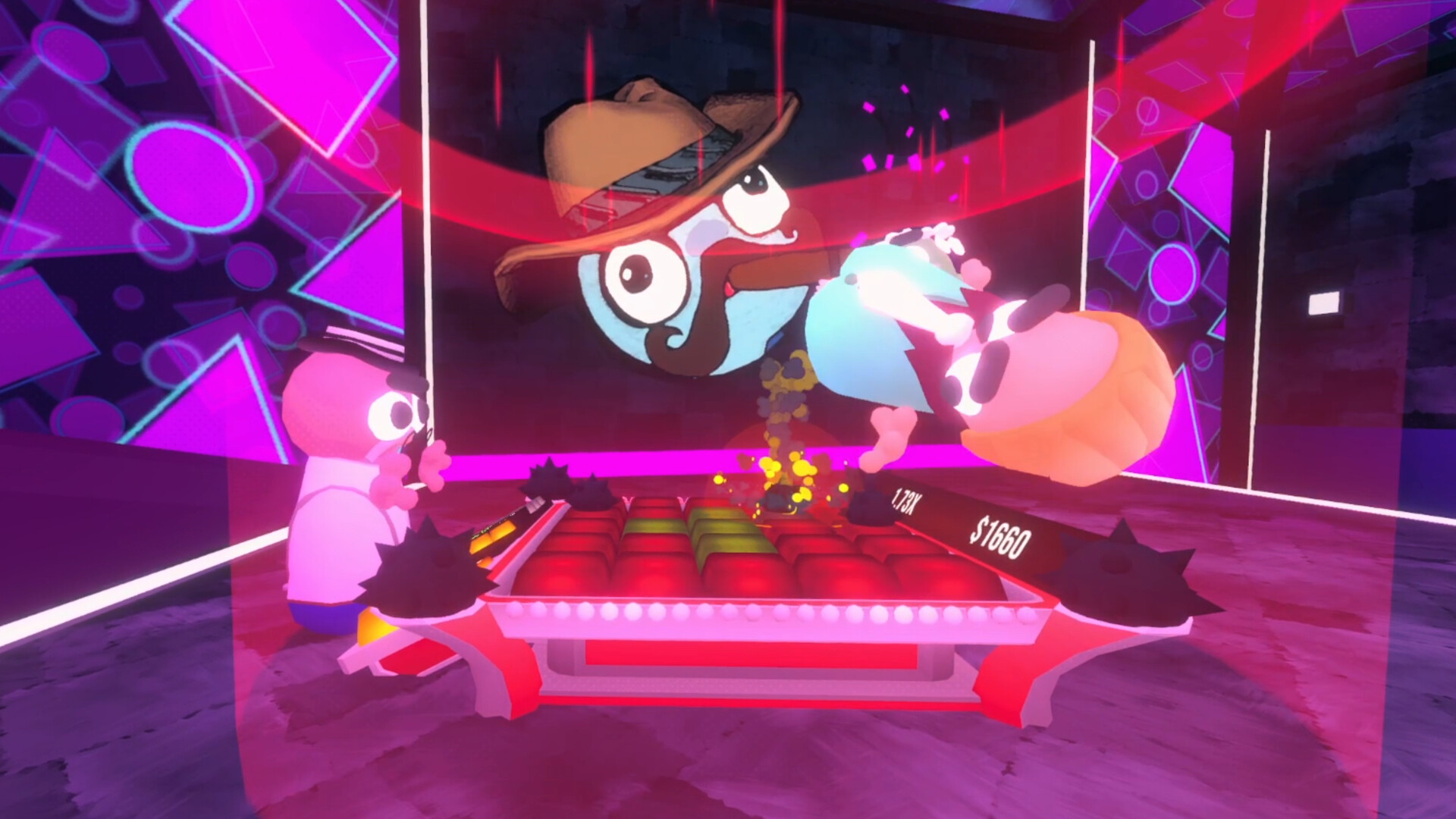
Bad camera feel ruins more first nights in Gamble With Your Friends than bad Blackjack odds. The game is a first-person co-op casino crawler: you walk the neighborhood lobby, grab items, ride the limo, and mash table keypads under a short timer while proximity voice carries stop calls. This controls guide covers the default interact loop, mouse and controller sensitivity, V1.0.30 remapping, Steam Input tips, and Steam Deck notes so your crew can actually aim at the right keypad.
If you still cannot join a lobby, read Invite Friends. If you need the full day loop, start with Getting Started. Patch context for remapping and language menus lives on Updates and Tools.
Core interactions you will use every day
| Action | Typical default | Where it matters |
|---|---|---|
| Escape cardboard box / interact | E | Lobby spawn, doors, pickups, many world prompts |
| Move | WASD | Lobby and casino floors |
| Look | Mouse | Aiming at tables, shark desk, shops |
| Jump / crouch | Space / Ctrl (confirm in-game) | Traversal and meme table climbs |
| Pause / settings | Esc | Sensitivity and Input tabs |
| Voice | Proximity chat | Bank callouts — stand near the treasurer |
Exact labels can shift with localization packs added in V1.0.30. Always open Settings in your build and read the live rows. Community mods exist that expose extra rebind rows (Use Item, Emote Wheel, Skip Cutscene, Pause) when vanilla menus omit them — optional, third-party, and not required for a normal run.
First five minutes: make the game feel playable
- Load into the neighborhood and press E to leave the cardboard box.
- Open Settings.
- On the General (or equivalent) tab, find mouse sensitivity. Community tutorials show a slider roughly from 0.1 to 500 with a common default near 2.0. Type a value if the slider is clumsy.
- Check invert X / invert Y if you play that way.
- Open the Input tab added or expanded in V1.0.30 and remap anything that fights your hands — especially Interact if E conflicts with another overlay.
- Save, walk to the item shop and limo once, and confirm you can interact without hunting for the prompt.
Do this before cosmetics. A pretty hat does not help if you cannot click the Holy Statue.
Mouse players
Mouse and keyboard remain the comfort pick for precise keypad taps and inventory grabs. Practical notes:
- Raise sensitivity until a 180° turn feels natural in the lobby hallway, then stop. Casino tables are close-range; hyper-high DPI mainly causes misclicks on bet confirms.
- Lower sensitivity if you keep overshooting Blackjack hit/stand zones or Street Craps dice interactions.
- Disable conflicting overlays (browser push-to-talk, clip tools) that steal E or mouse buttons mid-bet.
- If the camera feels heavy after a patch, re-check the General sensitivity row — earlier V1.0.11-era notes already called out mouse sensitivity work, and V1.0.30 expanded remapping further.
A short mouse-sensitivity walkthrough on YouTube (HardReset_Pro and similar) matches the Settings → General → slider flow described above.
Controller and Steam Input
Controllers work, but many players report slow right-stick turning until Steam Input is tuned. A reliable community checklist:
- In Steam, enable Steam Input for Gamble With Your Friends so Xbox, DualSense, and generic pads are recognized consistently.
- Open the game’s controller layout from the Steam overlay.
- Set the right joystick behavior toward Joystick Mouse (or an equivalent camera mouse emulation) so look speed matches a mouse curve instead of a sluggish default turn rate.
- Tighten deadzones if the camera drifts in the lobby.
- Raise in-game camera / look sensitivity sliders under Settings → Controls / Gameplay (wording varies by language pack).
- Re-test a full lobby → limo → Floor 1 walk before a serious quota day.
Host players should confirm their pad works before inviting five friends. A host who cannot interact with the shark desk wastes everyone’s night.
Steam Deck notes
Steam lists the game as Steam Deck Playable. On Deck:
- Use the Steam button → Controller Settings path to edit the layout the same way as a desktop pad.
- Prefer a community layout that maps Interact clearly to a face button you will not confuse with bet confirm.
- Keep text scale and language readable — V1.0.30 added many UI languages from the main menu.
- Proximity voice still depends on standing near teammates; Deck players in handheld mode should not wander into side rooms during stop calls.
Performance and thermal limits vary by Deck model; lower effects if frame time hitching makes keypad timing feel late.
Remapping checklist after V1.0.30
V1.0.30 (July 24, 2026) is the major systems pass that advertised remappable inputs and sensitivity options alongside Endless Mode and save rules. After any major patch:
- Open Settings → Input and confirm Interact, pause, and movement binds.
- Reset to defaults only if a bind is truly broken — write your custom layout down first.
- Re-test cardboard box escape, shop buy, limo board, and one table bet.
- Tell the lobby your Interact key if it is no longer E so pickup callouts stay accurate.
- Cross-check Steam news for app 3892270 if a newer patch retunes Input rows.
Save rules (timer, difficulty, starting Tickets, Endless) are not controls — they lock per save on the Empty Slot cogwheel. Configure those on the Tools page flow before New Game.
Accessibility and language packs
The same V1.0.30 menu pass added a wide set of selectable UI languages. Language does not change table math, but it does change how fast a new player can read bet prompts. Pick the language each player actually reads at speed, then keep challenge text callouts in voice so mixed-language lobbies stay synced. Wiki pages here stay in English, French, German, and Spanish regardless of in-game UI language.
Social “controls” that play like keybinds
Because the bank is shared, voice discipline is part of the control scheme:
- Stand within proximity range of the treasurer when you are about to confirm a big bet.
- Say the bet size out loud before pressing confirm.
- Agree on a single word for stop — many crews use safe when quota is done (Tips and Tricks).
- Bind push-to-talk (if you use an external overlay) to a key that does not collide with Interact.
A perfect sensitivity slider will not save a crew that cannot hear the stop call.
Troubleshooting
| Symptom | Likely fix |
|---|---|
| Stuck in cardboard box | Press E / remapped Interact |
| Camera turns like molasses on pad | Steam Input → right stick as Joystick Mouse + raise look sensitivity |
| Mouse feels wrong after relaunch | Re-check General sensitivity; confirm no dual USB receivers fighting |
| Cannot click shop or shark | Walk closer; confirm Interact bind; check another player is not blocking the prompt |
| Bind reset after update | Re-apply Input tab; avoid unverified mods until they match the new build |
| Friends cannot hear you | Proximity distance, Steam voice settings, stand near the decision huddle |
Related reading
- Getting Started — first lobby loop after controls feel good
- Invite Friends — Steam join flow
- Tools — save cogwheel settings that are not keybinds
- Updates — V1.0.30 remapping and sensitivity notes
- Players Hub — roles once everyone can actually move
Tune the camera once, lock Interact to a key you trust, and only then argue about Crash multipliers.
Frequently Asked Questions
Quick answers to the most common questions.
How do I leave the cardboard box?
Press E (or your remapped Interact key) after you load into the neighborhood lobby.
Where is mouse sensitivity?
Open Settings, open the General tab, and use the mouse sensitivity slider or typed value. Community guides show a wide range with a default near 2.0.
Why is my controller camera so slow?
Enable Steam Input, set the right stick toward Joystick Mouse behavior, then raise in-game look sensitivity. Retest in the lobby hallway before a quota day.
Can I remap keys?
Yes. V1.0.30 expanded remappable inputs under Settings → Input. Confirm binds after every major patch.
Does Steam Deck work?
Steam lists the game as Playable. Edit the controller layout from the Steam Deck overlay and keep Interact on a clear face button.